Every agency owner in India has seen this message. A new client, keen to get started, drops into the WhatsApp group: "Insta id: sharmasweets_official, pass: Sharma@1985". The group has the client, his nephew, your account manager, two designers and a former intern nobody removed. That password now lives on seven phones, in seven chat backups, forever.
Most advice on this topic comes from password-manager companies, so it jumps straight to "store it in our vault". A vault matters, but it's step two. Step one is noticing that in 2026 you almost never need the password at all. Of everything we manage for clients, only a handful of logins still have to be handed over, and we keep trying to make it zero.
Which client accounts actually need a password?
Very few. Before you ask for anything, go down this list. For most rows, the client adds you as a user and you log in with your own account.
| Account | The right way to get access | Password needed? |
|---|---|---|
| Instagram (professional account) | Partner access through the client's Meta Business Portfolio | No |
| Facebook Page | Partner access, or a Page role for your agency account | No |
| Meta ad account | Partner access with ad account permissions. Billing stays on the client's card. | No |
| Google Business Profile | Owner invites your agency email as a Manager under "People and access" | No |
| YouTube channel | Owner adds your email in YouTube Studio channel permissions | No |
| Google Analytics / Search Console | Owner adds your email as a user | No |
| LinkedIn Company Page | A Page admin adds your LinkedIn profile as an admin | No |
| Website (WordPress etc.) | Create a separate user for your agency, with only the role you need | No |
| Hosting, domain, old tools | Use team or sub-user access where it exists; otherwise a vault | Sometimes |
| Personal Instagram, never converted | Convert it to a professional account and link it, then partner access | Only until converted |
The pattern is simple: if the platform lets the owner add another person, use that. Your access is then tied to your login, the client can see exactly who has access, and removing you is one click. Nobody has to change a password that the whole family also uses for their email.
How does Meta partner access work, and where do clients get stuck?
Meta built agency partner access exactly for this. Your agency has its own Business Portfolio. The client's Instagram account and Facebook Page sit in their Business Portfolio. The client then shares those assets with your portfolio, and you hand them on to the right people in your team.
- The client needs a Business Portfolio, with their Instagram account (switched to professional) and Page added to it. Many small Indian businesses don't have one yet. Set it up with them on a call; it takes ten minutes.
- You send a request from your own Business Settings, under Users → Partners, asking for their assets. Or the client adds your portfolio as a partner from their side.
- The client approves and assigns assets. This is where it breaks. Adding a partner and assigning assets are two separate steps, and the second is the one people skip, as Leadsie's walkthrough points out. If you "have access" but see nothing, check this first.
- You assign the assets to your team members with only the permissions they need. A designer doesn't need the ad account.
Partner access doesn't transfer ownership. The client still owns the account, and can remove your agency without any password change. That's good for them, and honestly good for you: when a relationship ends, there is no awkward "please change your password" message.
For scheduling, you don't need a password either. A proper scheduler connects through Meta's own login screen and receives a revocable token, never the password. We explain that flow in Instagram auto-posting without password sharing.
Why should a password never be sent on WhatsApp?
Because a chat is the worst place a secret can live:
- It stays on every phone in the chat, including people who leave your agency next month, and in their backups.
- It's one forward or screenshot away from anyone. You will never know if it happened.
- You can't see who looked at it. If the account is misused, every person in the group is a suspect, including you.
- It's mixed with everything else. Nobody goes back to delete a password buried between reel feedback and a Diwali greeting.
Email and Google Sheets are no better. Security guidance from vendors like Keeper and agency tools like Sendible lands on the same list of bad habits: credentials in unencrypted email, texts and shared spreadsheets, and a departing employee who walks off with the sheet.
When you must take a password, how should you store it?
For the few logins that can't be shared any other way, follow these rules:
- Collect it in an encrypted form or vault, not a message. The client types it once, directly into something that encrypts it.
- Limit who can see it. Group logins per client and give access only to the people working on that client. Designers rarely need any.
- Keep a record of who opened it. If something goes wrong, you want a name and a time, not a guess.
- Don't save it in a shared browser. Australia's cyber agency advises against saving social media passwords in browsers unless they're in a password vault (cyber.gov.au). The office laptop that everyone uses is exactly the risk.
- Write down why you have it. "Hosting login, needed for SSL renewal." If nobody can say why, ask the client to change it and delete your copy.
What about OTPs and two-step verification?
This is the Indian agency headache: the OTP goes to the owner's phone, and the owner is at a wedding. Resist the temptation to move two-step verification to your account manager's personal number. When that person resigns, the account goes with them. Keep 2FA on the client's own phone or authenticator app. If you genuinely need to log in, agree a time with the client for the code. Better still, use partner access and the OTP problem disappears.
A message you can send new clients
Clients send passwords on WhatsApp because nobody told them another way. Tell them on day one:
Hi [Name], welcome aboard! A quick note on access, for your safety:
Please don't send us any passwords on WhatsApp or email. We don't need them for most of your accounts.
Instagram + Facebook: we'll send a partner request to your Meta Business account. You approve it and tick your Instagram and Page. We'll do this together on a 10-minute call.
Google Business Profile / YouTube: please add [agency email] as a Manager.
Anything else (like website hosting): fill it in the secure onboarding form we've sent you. It's encrypted, and only our account lead can open it.
You stay the owner of every account and can remove our access any time.
We put this note and the access steps inside our client onboarding form, so the client sees the guide right next to the field.
What happens to access when someone leaves?
Two kinds of leaving, two checklists.
When an employee leaves: remove them from your agency's Business Portfolio and every tool on their last day. Because access ran through your agency's accounts, not their personal ones, nothing else breaks. Any vault passwords they could see should be changed by the client, starting with the ones they actually opened.
When a client leaves: ask them to remove your partner access, confirm they own every account, and delete any password you still hold. Our client offboarding checklist covers the full handover. If you work with larger clients, they may also ask where their data sits; our piece on the DPDP Act for agencies covers what to have ready.
How we handle client logins in our own agency
We built this into My Digital Sevak after one too many passwords in a group chat. New clients fill an onboarding form in their portal. Each login field has a "How to give us access" guide right under it, and an "I don't have this account" option, so nobody invents an account to fill a box. When the client submits, the logins are encrypted before they're saved.
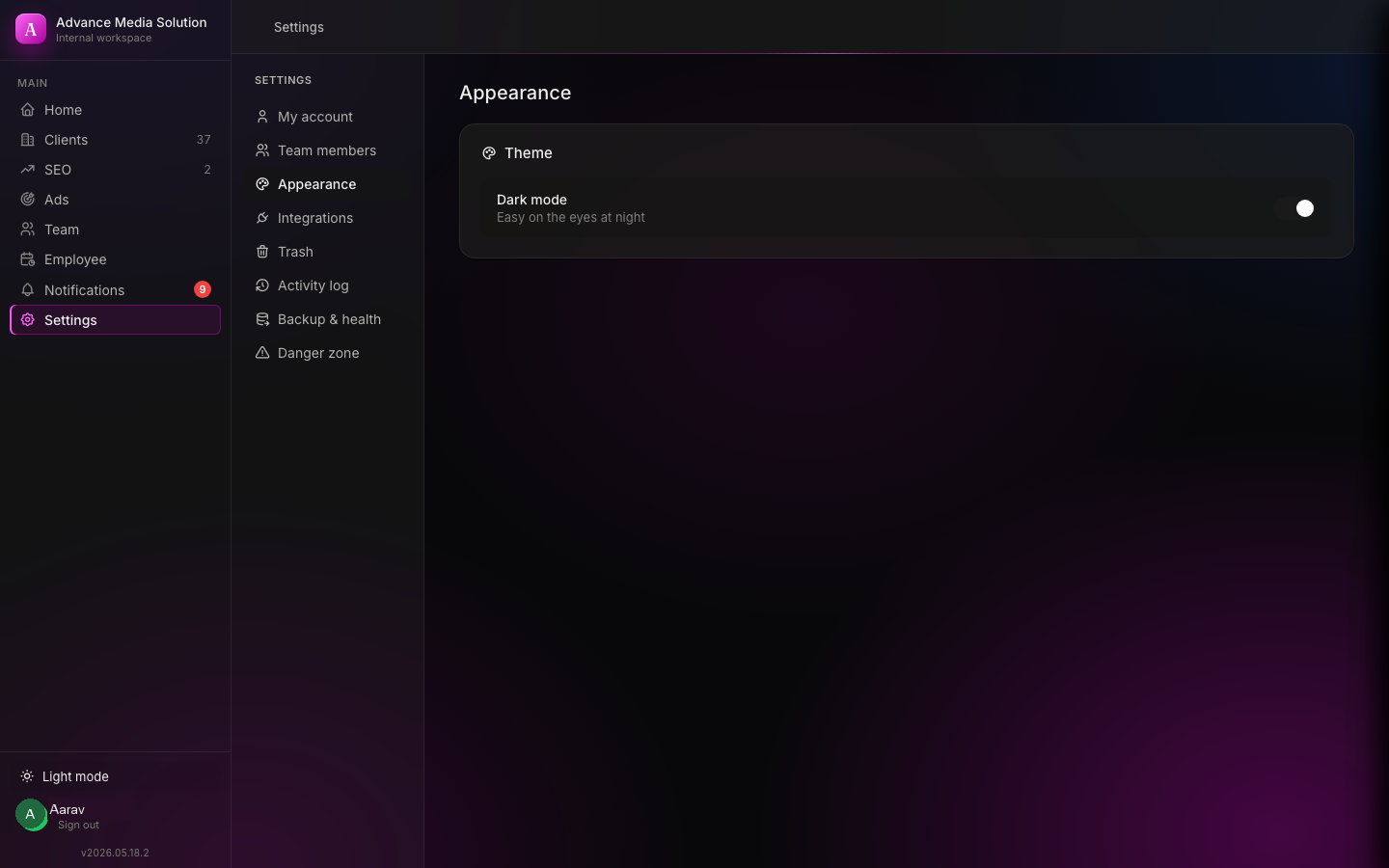
Only admins and managers can reveal a saved login, and every reveal is logged with the person's name. Designers and editors never see them. For posting, our Instagram scheduler connects through Meta's own login, so there's no Instagram password on our side at all. Agencies from Jaipur to Kochi tell us the same thing: the hard part was never the tool, it was getting clients to stop typing passwords into WhatsApp. A clear message on day one does most of that work.
Frequently asked questions
Do I need my client's Instagram password to manage their account?
No, if the account is a professional account linked to the client's Meta Business Portfolio. The client approves your agency as a partner and assigns the Instagram account and Page to you. You work from your own login, the client keeps ownership, and they can remove your access at any time without changing a password.
Is it safe to share passwords on WhatsApp?
No. A password sent on WhatsApp stays in every phone in that chat, including staff who later leave, and it is easy to forward or screenshot. You also cannot tell who has seen it. Ask clients to type logins into an encrypted form or vault instead, and only for accounts that have no way to add a separate user.
Who should receive the OTP for a client account?
The client, on a phone or authenticator app they control. Never move two-step verification to an employee's personal number, because when that person leaves you lose the account. If the agency truly needs to log in, agree a time with the client for the code, or use partner access so no OTP is needed at all.
Sources checked on 27 November 2026: Meta's agency partner access page; Leadsie on requesting access to a Meta Business Portfolio; Google Business Profile help on owners and managers; Sendible and Keeper on storing client social media passwords; cyber.gov.au security tips for social media. Menu names in Meta and Google change often, so follow the labels you see on screen.
Stop collecting passwords on WhatsApp
Onboarding forms with access guides, encrypted logins only admins and managers can open, Instagram publishing through Meta's own login, plus calendars, approvals and invoices in one agency workspace. From ₹999/month. Try it free for 3 days, no card needed, with a 7-day money-back guarantee.