LinkedIn is the platform agencies most often schedule badly. Not because it's hard, but because it's the "extra" platform on the retainer: the Instagram calendar gets the planning and approvals, and LinkedIn gets whatever someone remembers to post on Friday afternoon. For a B2B client, a manufacturer or a school whose parents are on LinkedIn, that's backwards.
Here is how Page scheduling actually works in 2026, what LinkedIn won't let you schedule, and the workflow we use so client Page posts go out approved and on time.
How do you schedule a post on a LinkedIn company page?
LinkedIn's built-in scheduler works for Pages the same way it works for a personal profile. The steps, from LinkedIn's own guidance for Pages:
- Go to the Page's admin view, or open the post composer and switch the "posting as" drop-down from your name to the Page.
- Write the post and add the image, video or document.
- Click the clock icon next to the Post button.
- Pick the date and time, up to three months ahead. If anyone on the team is travelling, double-check the time against IST before saving.
- Click Next, check the preview, then click Schedule.
On the phone app the flow is the same: write the post as the Page, then tap the clock icon in the top-right corner, as Buffer's walkthrough shows. To see what's queued, click the clock icon in the composer and choose "View all scheduled posts."
Who can schedule posts on a LinkedIn Page?
LinkedIn says only super admins and content admins can schedule Page posts. Its Page admin roles page defines them:
| Role | What it can do | Give it to |
|---|---|---|
| Super admin | Everything, including adding and removing admins, editing Page details and deactivating the Page | The client's founder or one trusted employee. Not the agency. |
| Content admin | Create and manage Page content, including posts, boosting posts and events | Each agency staff member who writes or schedules for the client |
| Analyst | The Analytics tab only | Whoever prepares the monthly report but doesn't post |
Ask for content admin, by name, for each person on your team. Don't accept the client's login, and don't ask for super admin "to make things easier." If a staff member leaves, the client removes one admin. Nothing gets reset, and nobody has to change a password the whole company uses. It's the same principle we follow on Instagram, covered in auto-posting without password sharing.
What can't you schedule on a LinkedIn Page?
LinkedIn's guidance lists the post types the native scheduler doesn't support: events, polls, reshares, service posts, jobs, and posts that include multiple images. Newsletter editions can be scheduled if the Page has a LinkedIn newsletter.
| Post type | Schedule natively? | What we do instead |
|---|---|---|
| Text, single image, video | Yes | Schedule |
| Document (PDF carousel) | Yes | Our default for "carousel" content on LinkedIn |
| Multiple images | No | Export as a PDF document, or post manually |
| Poll | No | Calendar reminder, post manually at the slot |
| Event, job, service post | No | Created by the client's team, promoted with a normal scheduled post |
| Reshare of an employee's post | No | Reshare manually on the day |
Can you edit a LinkedIn post after scheduling it?
Treat it as no. LinkedIn's Page guidance says you can't edit the content of a scheduled post, only its date and time; to change the text, you delete it and create a new post. Some newer walkthroughs show an "Edit post" option in the scheduled list, and LinkedIn changes this interface often, but don't build a process on it.
That one rule decides the agency workflow: the post has to be final before it's scheduled. Client feedback that arrives after scheduling means deleting and rebuilding the post, and that's how wrong versions go live.
The agency workflow: approve first, schedule once
- Plan LinkedIn with the rest of the month. Same calendar, same planning meeting as Instagram, with its own slots. Two to three Page posts a week is plenty for most Indian SMB clients. For what to post, see our LinkedIn playbook for B2B clients.
- Get approval on the exact post. The final caption, the final image or PDF, the tagged people and the link. Not a Word document with "image to follow."
- Schedule within a day of approval, in one sitting, for the whole batch.
- Check the scheduled list once a week against the calendar, especially before festivals or a client event.
- Have the founder reshare the important posts from their own profile. Founder profiles can't be scheduled through a Page, and in our experience a founder's reshare usually reaches more of the right people than the Page post alone.
Should an agency use LinkedIn's scheduler or a third-party tool?
For one or two client Pages, the native scheduler is fine and free. Past that, the problem isn't scheduling. It's that each Page's queue lives inside LinkedIn, separate from your calendar, your approvals and your other platforms.
Third-party tools solve that, but know what sits behind them. Posting to a company Page from outside LinkedIn uses its Community Management API, which LinkedIn opens only to registered organisations for commercial use, after a review that includes a screen recording of a user posting to their Page through the app. That's why some tools support LinkedIn Pages and others say "coming soon": the tool needs LinkedIn's approval, not just code.
Before you pick one, check two things on the tool's help pages: which Page admin role it needs to connect a client's Page, and which post types (polls, documents, multi-image) it can actually publish to a Page.
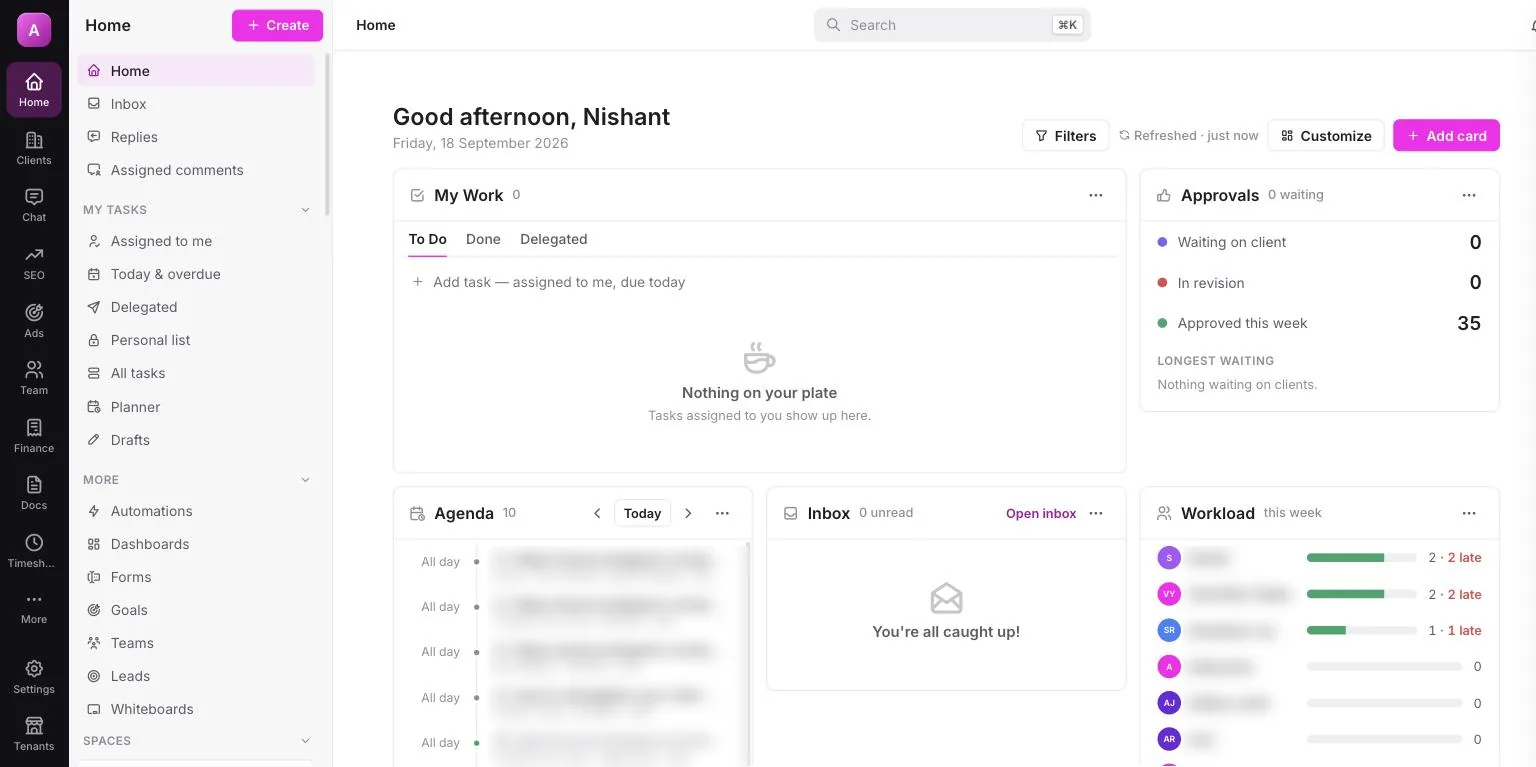
Our own position, honestly: My Digital Sevak plans, approves and auto-publishes client posts to Instagram and Facebook today, and LinkedIn Page publishing is rolling out while we wait for LinkedIn's API approval. Until then, the practical setup is to plan and approve LinkedIn posts in the same calendar as everything else, and schedule them natively once approved. If you're also moving clients to YouTube, the same approval-first logic applies to scheduling Shorts.
Whether you're an agency in Pune handling manufacturers or one in Gurugram handling SaaS founders, the order is the same: right admin role, final approval, then one scheduling session.
Frequently asked questions
How far in advance can you schedule a LinkedIn Page post?
Up to three months ahead using LinkedIn's own scheduler, according to LinkedIn's guidance for Pages. For an agency that is more than enough: schedule each month's approved posts in the last week of the previous month, and keep anything time-sensitive, like event or hiring announcements, for a few days before it goes out.
Can a content admin schedule posts on a LinkedIn company page?
Yes. LinkedIn says only super admins and content admins can schedule Page posts, and the content admin role covers creating and managing posts. That is the role to ask a client for. Analysts can only see the Analytics tab, so they cannot post or schedule anything on the Page.
Why can't I schedule a poll or a multi-image post on my LinkedIn Page?
LinkedIn's scheduler does not support them. Events, polls, reshares, service posts, jobs and posts with multiple images cannot be scheduled from a Page. Either publish those manually at the planned time, or turn a multi-image post into a single image or a PDF document post, which can be scheduled.
One calendar for every client and platform
Plan the month, get client approval in a portal, and auto-publish approved posts to Instagram and Facebook, with LinkedIn Pages rolling out, in one scheduler that sits next to your reports and GST invoices. From ₹999/month. Try it free for 3 days, no card needed, with a 7-day money-back guarantee.