Every agency owner knows this message. It's 10:40 PM, and the client writes on WhatsApp: "Can you send the calendar again? I can't find it." You scroll up, find the PDF you sent on the 1st, and realise half of it has changed since. Three posts moved, one festival got added, the reel on the 14th is now a carousel. So you either send an old file that's wrong, or you stop what you're doing and make a new one.
The problem isn't the client. It's that a content calendar is two different things at two different moments, and most agencies share it in one way for both. Here is how to split it, which method to use for each part, and what the client should and shouldn't see.
What are the ways to share a content calendar with a client?
There are four common methods. Each one is fine for something and wrong for something else:
| Method | Stays up to date? | Client can approve in it? | Good for | Main risk |
|---|---|---|---|---|
| PDF or image on WhatsApp / email | No, it's a snapshot | Only by replying "ok" | Monthly plan sign-off, a record of what was agreed | Out of date within days; old copies keep circulating |
| Google Sheet, view or comment link | Yes | Comments only | Small agencies with a few clients | Sharing is per file, so a master sheet exposes every client |
| Share link from a scheduling tool | Yes | Often yes | Agencies already scheduling in that tool | Links can expire or differ by plan; check the tool's rules |
| Client portal (login or no-login link) | Yes | Yes, per post | Agencies with 8+ brands and real approval cycles | Some clients never open it; you still need a WhatsApp fallback |
The scheduling tools all handle this a little differently, so read the fine print. Later's Instagram share links expire after 48 hours, according to Later's help centre. Metricool lets you export the calendar as a CSV, which is a static copy that won't update as you schedule (Metricool help). Agorapulse recommends a separate shared calendar per client (Agorapulse support). None of these are wrong. They just mean "send the link" is not a one-time job.
Why should you share the plan and the live calendar separately?
Because the client is answering two different questions.
- At the start of the month: "Is this the right plan?" They want to see the whole month at once: how many reels and statics, which festivals and offers are covered, what each post is about. This should be a fixed document, because it's what you both agreed to. When a client says in week three "we never discussed this", the signed-off PDF settles it.
- During the month: "What's happening this week, and what do you need from me?" They want the next few posts, their status, and anything waiting for their approval. This must be live. A PDF from the 1st cannot answer it.
Agencies that send only the PDF end up re-sending it every week. Agencies that send only a live link get no clear sign-off, and the plan drifts. Do both, and each one gets easier. If you are still running the whole calendar in a spreadsheet, our comparison of Google Sheets vs content calendar software covers where that starts to break.
What should a client see in a shared content calendar, and what should stay hidden?
A shared calendar is a client-facing document. Treat it like one. This is the split we use:
| Show the client | Keep internal |
|---|---|
| Posting date and day | Production date (we make posts two days before they go live) |
| Platform and format: reel, static, carousel | Who on the team is making it |
| Topic or hook, in one line | Internal notes like "client is slow, push early" |
| Draft caption, once it's ready | Rough drafts and rejected ideas |
| Status: planned, being made, waiting for you, approved, scheduled, posted | Rates, hours spent, other clients' tabs |
| Reference posts, so they see the style you mean | Raw files and editing notes for the team |
The one that bites most often is the team column. A client sees "Designer: Rahul" next to a post they didn't like, and the next call is about Rahul. Keep names off the client's copy. Our longer guide on what a client portal should show goes through the rest.
How do you share a Google Sheets content calendar safely?
If a spreadsheet is what you use today, set it up like this:
- One file per client. Google Sheets shares the whole file, not a tab. If January for six brands sits in one master sheet, sharing it with one client shares all six.
- Share as Viewer or Commenter, never Editor. Commenter is the right level for most clients: they can leave notes on a cell, but they can't move a date or delete a row.
- Turn off download, print and copy for viewers in the share settings, if the calendar has anything you'd rather not see forwarded.
- Freeze the header row and add a Status column with a dropdown, so the client can scan what is waiting for them.
- Pin the link in the client's WhatsApp group description, so "send the calendar again" is answered without you.
- Still send a PDF of the month's plan on the 1st, for the sign-off record.
How we share calendars with our own clients
At our agency, every brand gets its month in two forms. First, a plan page at the start of the month: every post with its date, format, topic, script or slide outline, and reference posts, sent as a PDF for sign-off. Second, the live calendar in the client portal of My Digital Sevak, which is what we built for exactly this job.
In the portal, the client sees a month view of their own brand only, with each post's status. For brands that like to see ideas early, we switch on a Plan view: posts the team has planned but not made yet appear in the calendar read-only, marked "Planned" or "Being made", with the topic, script, caption and references. They can read the idea, but approval happens on the finished post, not the idea. When a post is ready, the client approves it or asks for changes, typing a comment and attaching up to six images if they want to show what they mean. Once approved, it can be scheduled to publish on Instagram without anyone sharing a password.
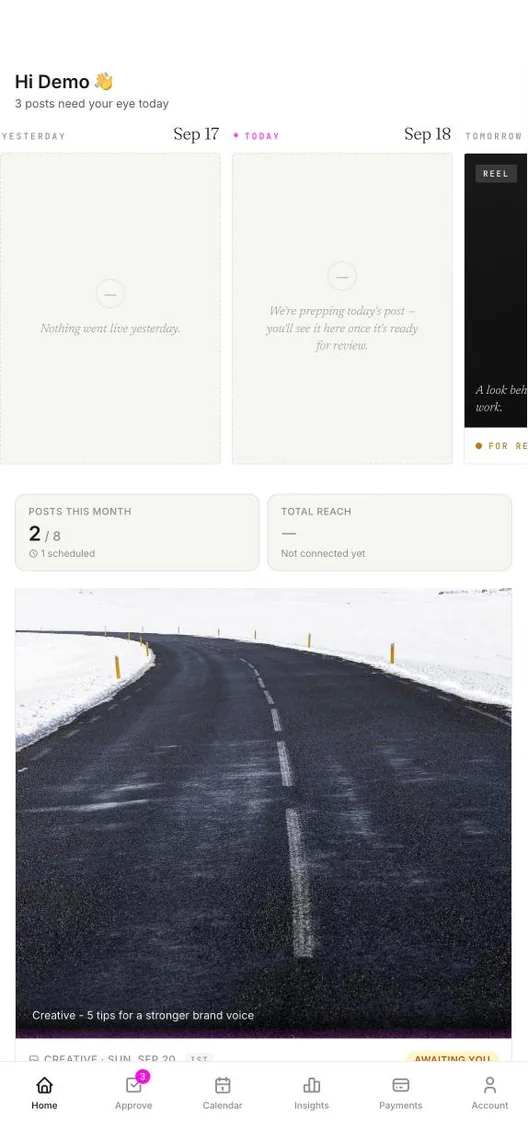
For clients who will never log in to anything, and every agency has a few, the team can send a post on WhatsApp with the actual file attached and a review link that opens without a login, with Approve and Changes buttons. The client stays in WhatsApp; the answer still lands on the post. That's the part of our client approval app that saved us the most late-night messages. The full approval flow is in our content approval workflow template.
Five mistakes when sharing a content calendar
- Sharing the master sheet. One wrong link and a client sees a competitor's plan.
- Edit access "to make it easy". It makes it easy for the calendar to change without anyone knowing.
- No sign-off on the plan. Without a fixed record, scope creep has nothing to push against. Our guide to managing client expectations covers that kickoff conversation.
- Internal notes left in. Production dates, maker names and "TBD, ask Sir" all leak into client copies when one file does both jobs.
- Asking for approval in five places. Calendar comments, email, WhatsApp, a call and a voice note. Pick one place where approval counts, and say so on day one.
Agencies we talk to in Lucknow and across tier-2 India mostly start with the PDF-plus-WhatsApp method. That's fine for three clients. By ten, the weekly "send it again" messages are the signal to move the live part somewhere that updates itself.
Frequently asked questions
Should I give a client edit access to the content calendar?
No. Give view or comment access only. A client with edit rights will move dates, delete rows and rewrite captions without telling the team, and you lose track of what was agreed. Let them comment or approve, and let your team make the change so there is one owner of the calendar.
Is a PDF or a live link better for sharing a content calendar?
Use both, for different jobs. A PDF is right for the monthly plan sign-off because it is a fixed record of what the client agreed to. A live link or portal is right for the rest of the month, because dates and statuses change and a PDF goes out of date the day after you send it.
Can a client see other clients in a shared Google Sheet?
Yes, if you share your master sheet. Google Sheets shares the whole file, so every tab inside it is visible to anyone with access. Keep a separate file per client, or use a tool that shares one client's calendar at a time, and never send a link to the agency's master calendar.
Sources checked on 28 November 2026: Later, Metricool and Agorapulse help-centre pages on sharing calendars with clients. Share-link rules change with plans and product updates; check your own tool before relying on a link for a whole month.
One calendar per client, always up to date
A client portal where each brand sees its own calendar, approves finished posts, and gets a no-login review link on WhatsApp, next to your team's tasks and Instagram publishing in one agency workspace. From ₹999/month. Try it free for 3 days, no card needed, with a 7-day money-back guarantee.